How to Setup and use CCC True Integration (1place)
AA-02828
Overview
To be able to integrate with CCC True, Customers, Items, and FTP settings must be set up.
Preparation
STEP 1
1. Instruct our customer to contact CCC and to create an account.
2. Request for these info from CCC and send it to our Lead Developer, Julian Ridley for the API settings:
- CCC Customer ID/Supplier #
- Login credentials for Invoice sending
3. Get the Customer ID from 1place and send it to Julian for the API.
4. Request the FTP info from CCC and forward to our Developer, (one who is currently handling the integrations) so he can set up the FTP settings in 1place or you can enter it on your own.
***If the customer has an existing account with CCC, you may contact this number: 8558744404. Ask for the File Transfer Password for API setup.
Step 2
1. Go to 1place.cloud > Sales > Integrations > CCC True
2. Set up the Settings. (See below for Settings)
Settings
General Settings
Fill out the fields.
Supplier ID ForUs - Supplier ID (of our customer) in CCC.
Our Customer's Info: Our CompanyName, Our StreetAddress, Our City, Our State, Our ZipPostalCode, Our PhoneNumber, OurContactFirstName, OurContactLastName, Our ContactTitle, OurContactPhone, OurContactEmail
Our Lead Developer's info: OurTechnicalContactFirstName, OurTechnicalContactLastName, OurTechnicalContactTitle, OurTechnicalContactPhone, OurTechnicalContactEmail,
Email Notification -
Fall Back Customer # - All orders from Customers that are NOT in your Company's system will not be discarded but will be designated to the Fall back Customer. (You can create a Customer record dedicated as the Fall back Customer for CCC Orders)
Salesperson - Our customer's Sales Person's name.
Part Type Override - This will override the Part Type.
Default Quality Indicator - Part Quality Code. i.e., 'AM' for Aftermarket
Delivery Cutoff Time
Default Lead Time if Out of Stock (Number of Days)
Part Preparation Lead Time
Hide Zero Price - Checkbox. Check to hide items with 0 Price.
Show Out Of Stock Items - Checkbox. Check to still show items without qty in stock.
Use Supplier Qty -
Only Show Special Order -
Warranty Type -
Warranty Length -
Warranty Info - i.e., "Please contact for more info..."
Part Type / Code Mapping
API Supplier Part Type Quality Code - Item Quality Code. You can request a list of codes from CCC.
AM = Aftermarket
OD = Optional OEM
RC = Reconditioned
RM = Remanufactured
Only list one part type
Your Equivalent Part Type Quality Code (see Quality Indicator Field on Item Detail screen) - Quality type code of our Customer's items.
Industry Certification - CAPA, NSF, or CAPA ^ NSF. May also be blank if no certifications.
Delivery Area Zip Codes
1. Contact our customer and request for the list of Zip Codes within their delivery area.
2. Download the Zip Code template and use it to create the list and then import to 1place.
Warehouse
1. Enter the warehouse info of our Customer.
File Transfer
1. Request our Dev, (one who is currently handling the integrations) to fill out the required fields for the FTP settings.
2. Choose Download then click Export Data Files button to download the FTP files.
3. Choose FTP then then click Export Data Files button to transfer the files straight to CCC customer folder.
- Sample
- File Transfer Host: sftp.cccis.com
- File Transfer Port: 22
- File Transfer Protocol: SFTP
- File Transfer Encryption: Normal
- File Transfer User: Username
- File Transfer Password: Password
***CCC will request for the FTP files so they can provide the list of CCC customers around the area. Choose FTP then click the Export Data Files button.
Preparation (continued)
STEP 3 - Customers
*** To be able for CCC to send the Customer list, you already should have imported the list of Zipcodes and have sent the FTP files.
- Send our Customer's zipcode to CCC and request a list of Customer records and their RFIDs that are around that zipcode.
- Match them with the Company name in 1place. If they do not exist, they can be imported as new customers.
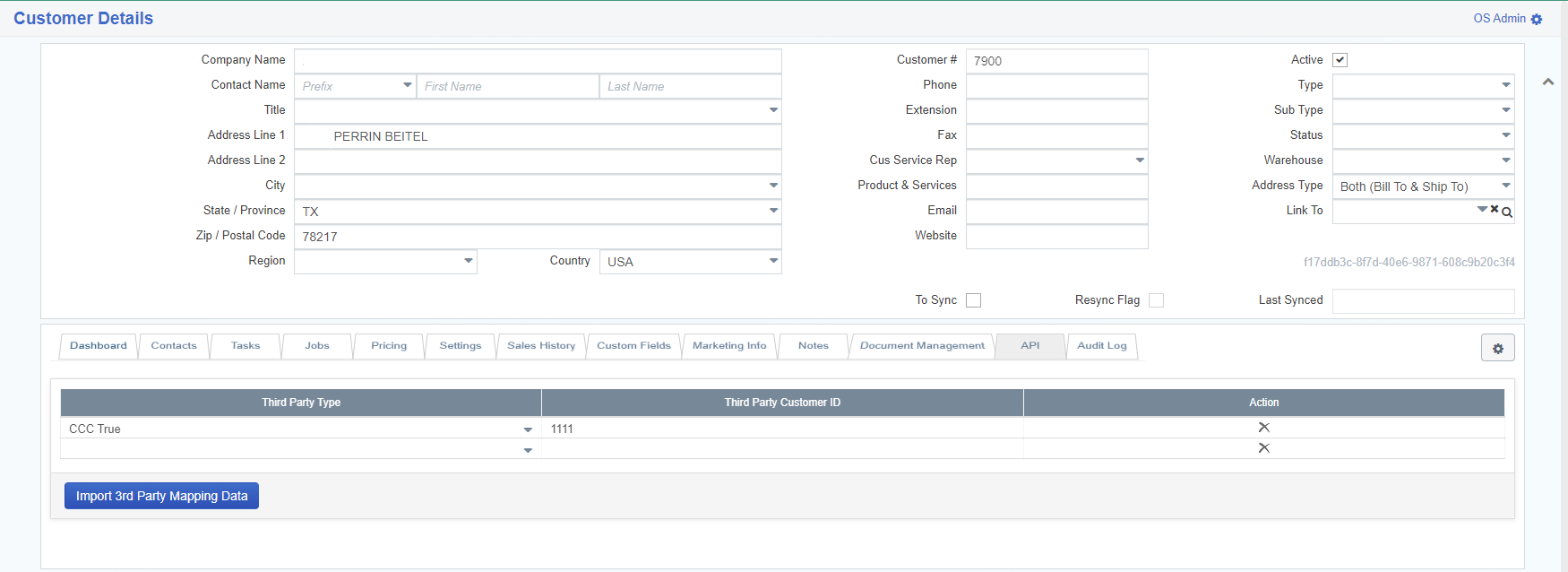
- We need to use the RFID of the Customer records from CCC and enter/import them to 1place. This is to match the customers from CCC and 1place. Go to Customer details > API, click Import 3rd Part Mapping Data, download the template and enter the Customer# (1place), ThirdPartyType i.e., CCC, and ThirdPartyCustomerID (RFID from CCC) then Import.
STEP 4 - Items
- OEM Numbers must have values.
- List price > 0
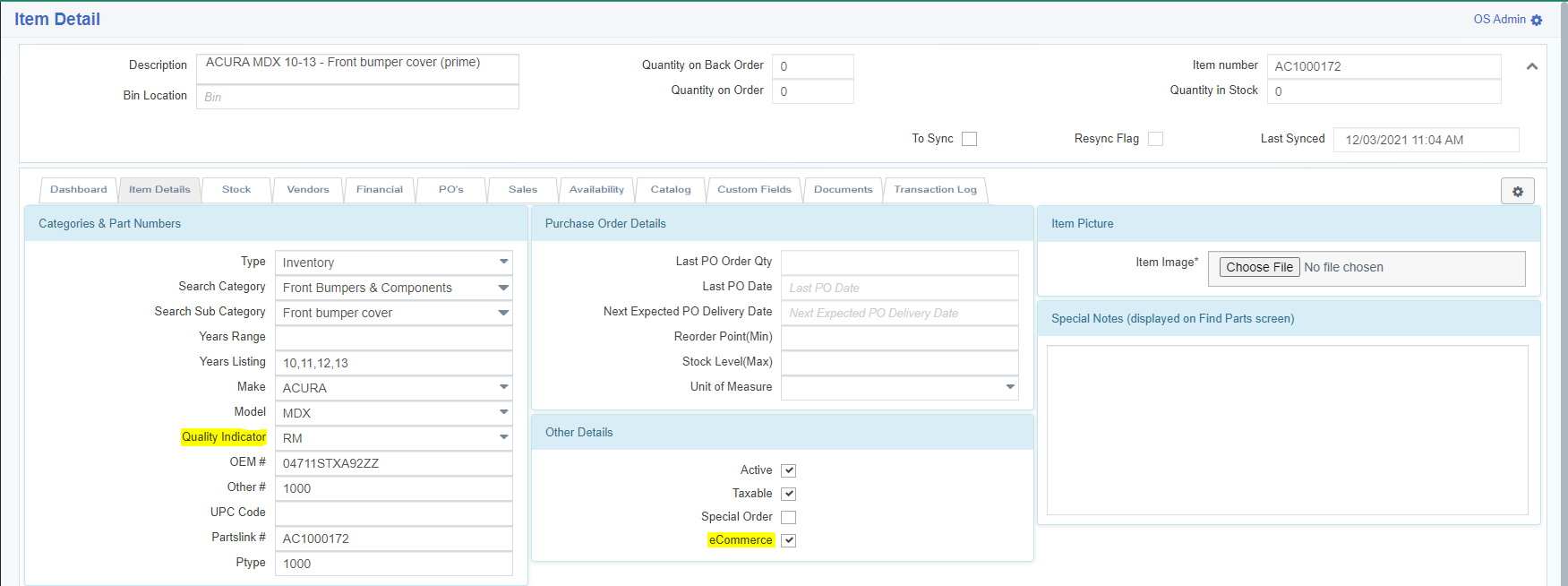
- Enter the Part Quality Code.
- A - Aftermarket
- C - If CAPA Certified
- OO - Opt OEM
- RC - Reconditioned
- RM - Remanufactured
- ECommerce should be active. (See Item Details)
- Quantity in Stock > 0
Step 5 - Test Order
1. Contact CCC and request them to send a test order. Ask them for the order # and RFID that they used to send the order.
2. Once the test order has been received in 1place, you will then have to Invoice the order. (Make sure the Invoice Credentials have been given to Julian and have been set up for in the API for this to work)
3. Confirm with CCC if they have received the Invoice on their end.
4. After Invoice has been confirmed by CCC, they will contact our Customer to conduct some trainings on CCC parts and functionalities. i.e., CCC IU, Communicating with shops, configuring customers, etc.a
5. After all the trainings have been completed, CCC will activate the integration.
Downloading Files or Sending Files via FTP
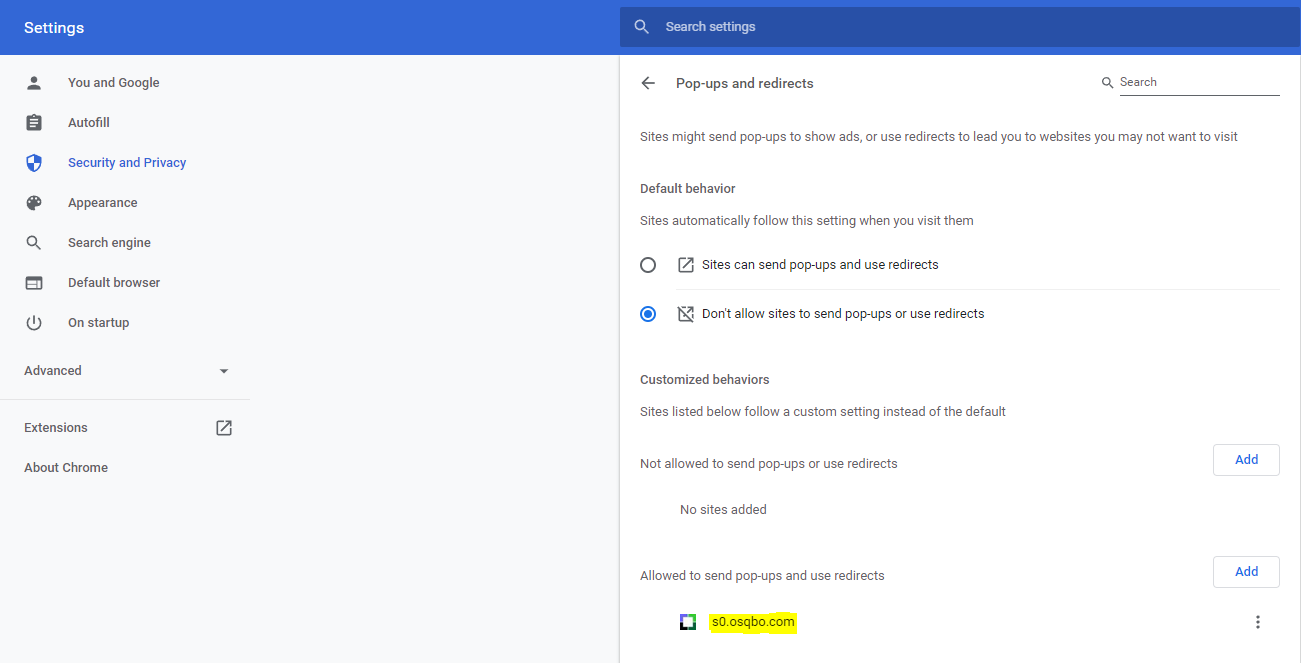
Go to Sales > Integrations > CCC True, select Download (Default) then click the Export button to download the files. Select FTP to transfer the files directly to CCC server from 1Place. If your web browser does not allow you to download ALL 5 files, go to your Web Browser Settings>Security and Privacy>Site Settings > Pop-ups and Redirects then add 's0.osqbo.com' to allowed pop-ups.